
Integrate Google Forms with Google Calendar Easily
Table of Contents
Google Forms and Google Calendar are two powerful tools that, when combined, can enhance scheduling, event management, and data collection processes. Integrating Google Forms with Google Calendar enables you to automate event scheduling, manage appointments efficiently, and keep track of important dates with ease.
Why to use Google Forms Calendar Integration?
Automatically create events in Google Calendar based on responses submitted through Google Forms, reducing manual data entry and scheduling errors.
Streamline the process of collecting and managing event-related data, ensuring that your calendar is always up to date with the latest information. Keep all your event details organized in one place, making it easier to manage and track appointments, meetings, and other important events.
Share scheduled events with team members and clients directly from Google Calendar, facilitating better collaboration and communication. Save time by automating the scheduling process, allowing you to focus on more critical tasks and responsibilities.

How Implement Google Forms Calendar Integration?
Integrating Google Forms with Google Calendar involves a few steps and can be accomplished using Google Sheets and Google Apps Script. Here’s a step-by-step guide to help you set up the integration:
1. Create a Google Form
Start by creating a Google Form to collect the necessary information for your events:
- Open Google Forms and create a new form.
- Add Questions, include fields such as event title, date, time, and description.
- Customize the form to suit your needs, ensuring all relevant information is collected.
2. Link Google Form Responses to Google Sheets
Next, link your Google Form to a Google Sheet where responses will be recorded:
- Open Your Form and go to the Responses tab in your Google Form.
- Click on the Google Sheets icon to create a new spreadsheet that will automatically capture form responses.
3. Set Up Google Apps Script
Google Apps Script can be used to automate the process of adding events to Google Calendar based on the form responses:
- Open the Google Sheet linked to your Google Form.
- Go to Extensions > Apps Script to open the Google Apps Script editor.
- Copy and paste the following script into the editor. This script will create events in Google Calendar based on the data from your Google Sheet:
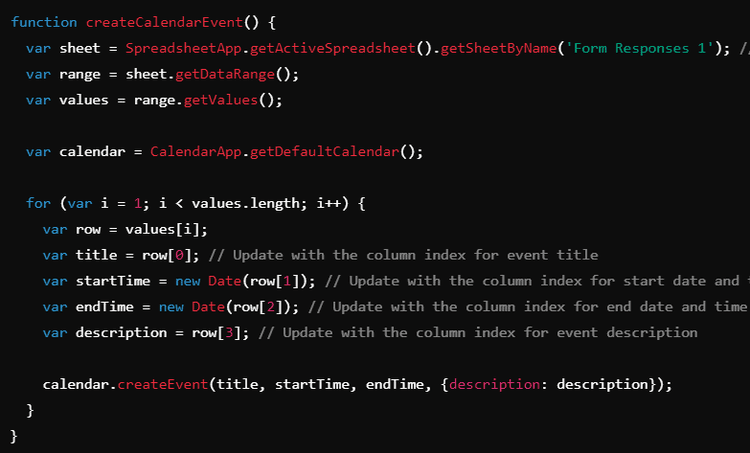
- Save the script and click the Run button to test it. Make sure to authorize the script to access your Google Calendar.
4. Set Up Triggers
To automate the process, set up triggers to run the script automatically:
- In the Apps Script editor, click on the clock icon to open the triggers page.
- Click on Add Trigger and set it to run the createCalendarEvent function at your preferred frequency (e.g., every hour).
5. Test the Integration
- Submit a test response through your Google Form to ensure that the integration works correctly and that events are created in Google Calendar as expected.
Click here to know about Integrate Google Forms with Google Calendar
Benefits of Google Forms Calendar Integration
- Streamlined Scheduling
- Real-time updates with the latest information from your Google Form responses.
- Error Reduction
- Visibility make it easier to manage and review your schedule.
- Increased Productivity
Integrating Google Forms with Google Calendar can significantly enhance your event management processes, improve organization, and save time. By following the steps outlined in this guide, you can seamlessly connect these powerful tools and automate your scheduling tasks. Whether you’re managing appointments, organizing meetings, or coordinating events, this integration helps streamline your workflow and ensures that your calendar is always up to date. Using embedded iPaaS platforms in Klamp.io to connect with 100+ pre-built connectors and streamline your workflow automation.
For more info on easy automation solutions visit Klamp Embed & Klamp Connectors