
Notion Google Drive Integration

Table of Contents
Notion and Google Drive are two popular platforms that, when integrated, can significantly enhance your ability to manage projects, store documents, and collaborate with teams. This blog will delve into the benefits of Notion Google Drive integration, provide a detailed guide on how to set it up, and explore best practices to maximize its potential.
Notion and Google Drive
Let's learn about Notion and Google Drive before discussing the advantages of integration:
Notion
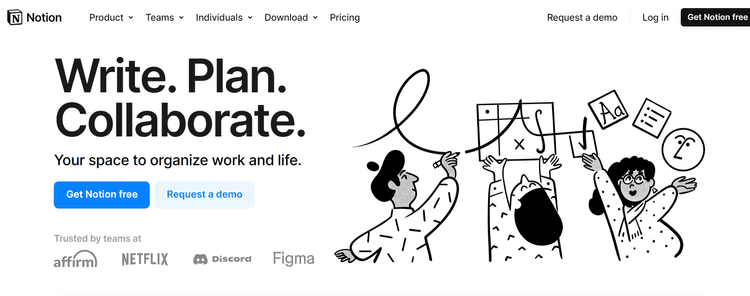
Notion is an all-in-one workspace that combines note-taking, project management, task tracking, and database management into a single platform. Its flexible and customizable interface allows users to create pages, databases, and boards tailored to their specific needs. Whether you're managing a personal project, coordinating a team, or organizing company-wide data, Notion provides a centralized space to keep everything in one place.
Key Features of Notion:
- Create and customize pages with rich content, including text, images, and embedded files.
- Build databases to manage tasks, projects, or any other data you need to track.
- Use Kanban boards, to-do lists, and calendars to organize and track tasks.
- Use a variety of templates for different purposes, such as meeting notes, project plans, or content calendars.
Google Drive Apps
Google Drive is a cloud storage service that allows users to store and share files online. It integrates with various Google apps, including Google Docs, Sheets, Slides, and more. Google Drive provides a robust platform for file storage, collaboration, and sharing, making it a popular choice for both personal and professional use.
Key Features of Google Drive:
File Storage: Store and access files from anywhere with an internet connection.
Real-time Collaboration: Collaborate on documents, spreadsheets, and presentations in real-time.
Integration with Google Apps: Seamlessly integrate with Google Docs, Sheets, and Slides for document creation and editing.
File Sharing: Share files and folders with others, setting permissions for viewing, commenting, or editing.
Benefits of Notion Google Drive Integration
Integrating Notion with Google Drive offers several advantages that can streamline your workflow and improve collaboration.
1. Seamless File Access
By integrating Google Drive with Notion, you can easily access and manage your Google Drive files directly within your Notion workspace. This eliminates the need to switch between platforms and helps you maintain a cohesive workflow.
2. Collaboration
The integration allows for improved collaboration by enabling you to embed Google Drive files, such as documents, spreadsheets, and presentations, into Notion pages. This means you can view, edit, and collaborate on files without leaving Notion, making team projects and shared documents more accessible.
3. Centralized Information
With Notion serving as a central hub for project management and Google Drive handling file storage, you can keep all relevant information in one place. This centralized approach reduces the risk of losing track of documents and ensures that all team members have access to the latest files and updates.
4. Improved Organization
Integrating these two tools helps streamline organization by linking files to specific projects or tasks within Notion. You can create links to Google Drive files directly from Notion pages, making it easier to organize and access relevant documents.
5. Automated Workflows
The integration can automate certain aspects of your workflow. For instance, you can set up Notion to automatically update or link to specific Google Drive files based on predefined triggers, saving time and reducing manual effort.
How to Set Up Notion Google Drive Integration
Setting up the Notion Google Drive integration involves a few straightforward steps. Here’s a step-by-step guide to get you started:
1. Prepare Your Accounts
Ensure that you have active accounts for both Notion and Google Drive. If you don’t have these accounts, create them:
- Visit Notion and sign up for an account.
- Go to Google Drive and sign in with your Google account.
2. Connect Google Drive to Notion
To integrate Google Drive with Notion, follow these steps:
Step 1: Open Notion
Log in to your Notion account and navigate to the workspace where you want to integrate Google Drive.
Step 2: Access the Integration Settings
- Click on the workspace name in the top-left corner and select Settings & Members from the dropdown menu.
- In the settings menu, navigate to the Integrations tab.
- Click on Add Integration or Connect a service to start the integration process.
Step 3: Choose Google Drive
- In the integrations directory, search for Google Drive.
- Click on Connect or Authorize to start the authorization process. You will be redirected to a Google sign-in page.
- Enter your Google credentials and grant Notion permission to access your Google Drive files.
- Follow the prompts to complete the integration process. Once authorized, your Google Drive account will be connected to Notion.
3. Embed Google Drive Files in Notion
With the integration set up, you can now embed Google Drive files into your Notion pages:
Step 1: Open a Notion Page
Navigate to the Notion page where you want to embed a Google Drive file.
Step 2: Add an Embed Block
- Click on the + button or type /embed to add a new block.
- Choose the Embed option from the block menu.
- Copy the link to the Google Drive file you want to embed and paste it into the embed block. Notion will automatically fetch and display a preview of the file.
Step 3: Adjust Settings
You can adjust the settings for the embedded file, such as resizing the preview or setting permissions for viewing. This allows you to customize the embedded file to fit your page layout and needs.
Tips for Notion Google Drive Integration
To maximize the benefits of the Notion Google Drive integration, consider the following best practices:
1. Organize Your Files Efficiently
Ensure that your Google Drive files are well-organized before integrating them with Notion. Create a clear folder structure and use descriptive file names to make it easier to find and link relevant documents.
2. Use Notion Templates
Use Notion’s templates to create standardized pages for different projects or tasks. Include embedded Google Drive files in these templates to ensure that all relevant documents are readily accessible.
3. Regularly Update Links
Periodically review and update the links to Google Drive files in Notion. Ensure that all links point to the correct and most recent versions of documents to avoid confusion and ensure that team members have access to the latest information.
4. Manage Permissions Carefully
Be mindful of the permissions you set for embedded Google Drive files. Ensure that the correct access levels are assigned to maintain document security and control over who can view or edit the files.
5. Use Notion’s Database Features
Take advantage of Notion’s database features to link Google Drive files to specific database entries. For example, you can create a database of projects and link relevant Google Drive files to each project entry. This helps keep all project-related documents organized and easily accessible.
6. Automate Routine Tasks
Explore automation tools and workflows to streamline repetitive tasks. For example, you can use tools like Klamp to automate the creation of new Notion pages based on updates in Google Drive, or vice versa.
The Notion Google Drive integration is a powerful way to streamline your workflow, improve collaboration, and improve organization. By combining Notion’s versatile workspace features with Google Drive’s robust file storage and sharing capabilities, you can create a cohesive and efficient digital workspace.
For more info on easy automation solutions visit Klamp Embed & Klamp Connectors