
Increase Team Productivity through ClickUp

Table of Contents
Increasing team productivity is crucial for achieving organizational goals. ClickUp, a versatile project management tool, offers a range of features designed to streamline workflows, enhance collaboration, and drive efficiency.
1. ClickUp's Key Features
Before diving into strategies, it's essential to understand what ClickUp offers. ClickUp is known for its flexibility and comprehensive set of features, including:
- Task Management: Create, assign, and track tasks with customizable statuses and priorities.
- Docs and Wikis: Collaborate on documents and maintain a knowledge base within the platform.
- Goals and OKRs: Set, track, and manage goals and key results to align team efforts with company objectives.
- Time Tracking: Monitor time spent on tasks and projects to improve productivity and billing accuracy.
- Integrations: Connect ClickUp with other tools such as Slack, Google Drive, and Trello to centralize work processes.
2. Creating a Productive Workspace
a. Customize Workspaces:
Tailor ClickUp to fit your team’s needs by customizing workspaces. Use ClickUp’s multiple views—List, Board, Calendar, and Gantt—to manage tasks effectively. For instance, the Kanban board view is excellent for visualizing task progress, while the Gantt chart helps in planning and scheduling.
b. Set Up Task Hierarchies:
Organize tasks into projects and subtasks to ensure clarity and maintain focus. ClickUp’s hierarchy allows you to create tasks, subtasks, and even nested subtasks, making it easier to manage complex projects. This structure helps in breaking down large tasks into manageable chunks, improving overall productivity.
3. Implementing Efficient Task Management
a. Use Templates:
ClickUp provides a range of templates for common project types, including marketing campaigns, product launches, and event planning. Templates save time and ensure consistency across similar tasks and projects.
b. Automate Repetitive Tasks:
Leverage ClickUp’s automation features to streamline repetitive tasks. Set up automation rules to trigger actions such as task assignment, status updates, and notifications based on specific conditions. Automation reduces manual work and minimizes the risk of errors.
c. Prioritize and Assign Tasks:
Effectively prioritize tasks by using ClickUp’s priority levels (Urgent, High, Medium, Low). Assign tasks to team members based on their strengths and availability. Clear task assignments and priorities help in focusing on high-impact activities and meeting deadlines.
4. Enhancing Team Collaboration
a. Utilize Comments and @Mentions:
Encourage team collaboration by using ClickUp’s comment feature. Team members can leave comments on tasks, share updates, and tag colleagues with @mentions. This functionality ensures that communication is centralized and that everyone stays informed.
b. Share Docs and Files:
ClickUp’s Docs and file-sharing capabilities facilitate real-time collaboration. Use ClickUp Docs to create and edit documents collectively. Share files directly within tasks to keep relevant information accessible and organized.
c. Hold Virtual Meetings:
ClickUp integrates with video conferencing tools like Zoom and Microsoft Teams. Schedule and conduct virtual meetings directly from ClickUp to discuss project progress, address issues, and brainstorm ideas without leaving the platform.
5. Tracking Progress and Performance
a. Monitor Time and Productivity:
ClickUp’s time tracking feature allows you to monitor how time is spent on tasks and projects. Analyzing time logs helps in identifying productivity patterns, optimizing resource allocation, and improving project planning.
b. Generate Reports:
ClickUp offers reporting features that provide insights into team performance and project status. Generate reports to track progress, assess productivity, and identify areas for improvement. Use these insights to make data-driven decisions and enhance team performance.
c. Review and Adjust Goals:
Regularly review goals and objectives within ClickUp to ensure alignment with overall business strategy. Adjust goals as needed based on project progress and team performance. ClickUp’s Goals and OKRs feature helps in tracking progress towards achieving key results.
6. Integrating ClickUp with Other Tools
a. Connect with Communication Tools:
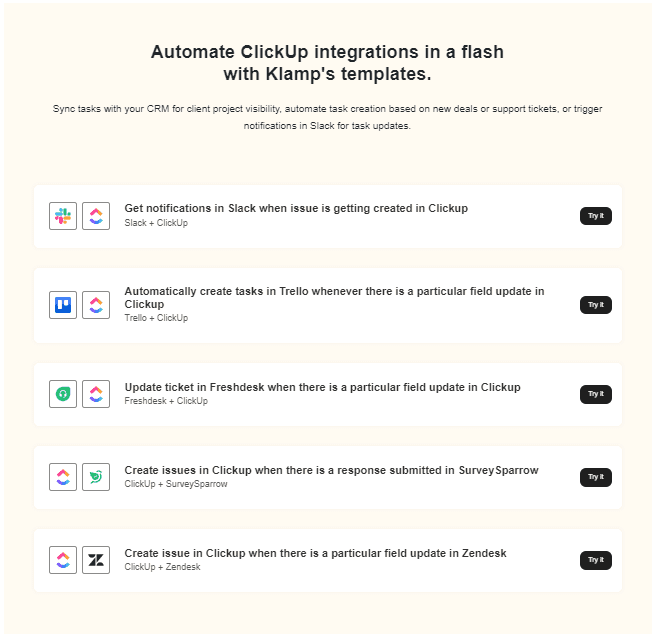
Integrate ClickUp with communication tools like Slack to receive updates and notifications directly within your messaging platform. This integration ensures that you stay informed about task status and project developments without switching between apps.
b. Sync with Calendar Apps:
Sync ClickUp with calendar apps such as Google Calendar or Outlook to keep track of deadlines, meetings, and important dates. Calendar integration helps in managing time effectively and avoiding scheduling conflicts.
c. Automate with Klamp:
Use Klamp to connect ClickUp with other applications and automate workflows. For example, set up Klamp to create ClickUp tasks from new emails or update project statuses based on external triggers. Automation enhances efficiency and reduces manual data entry.
By implementing these strategies and utilizing tools like ClickUp and Klamp.io, you can significantly improve team productivity and drive your projects to successful outcomes.
For more info on easy automation solutions visit Klamp Embed & Klamp Connectors