
How to blur your background in Zoom

Table of Contents

How to blur the background in Zoom, when to use this feature, and when it might be better to leave your background visible.
How to blur background in Zoom
If you've decided that blurring your background is the right choice for your next Zoom meeting, here’s a step-by-step guide on how to blur the background in Zoom.
Step 1: Update Zoom
Ensure you have the latest version of Zoom installed on your device. Background blurring is available on versions 4.6.0 and later.
Step 2: Access settings
- Open the Zoom application on your computer.
- Click on your profile picture in the top right corner.
- Select "Settings" from the dropdown menu.
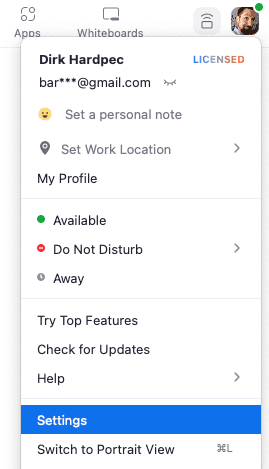
- In the Settings menu, click on “Background & Filters” on the left-hand side.
- You’ll see distinct options for virtual backgrounds and effects.
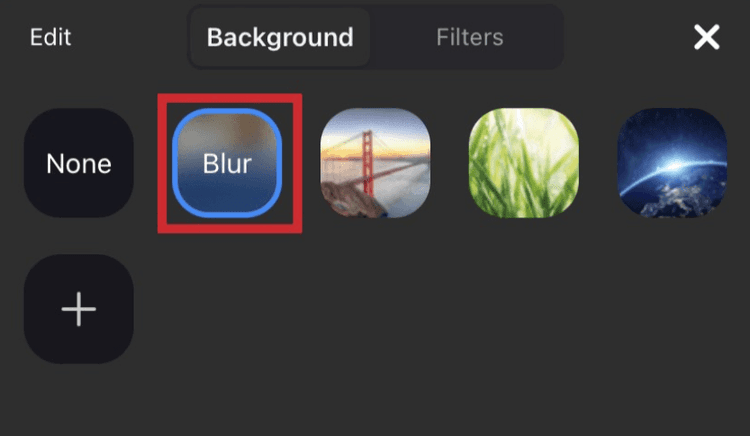
- Under the “Virtual Background” section, you will see a “Blur” option.
- Click on the “Blur” option. Zooming will automatically blur your background, allowing your image to still be in focus.
- Before joining a meeting, consider testing how your blurred background looks. You can do this by starting a new meeting in Zoom and checking your video feed.
Make any necessary adjustments to your camera or lighting to ensure you look your best.
How to blur background in Zoom on Windows 10
For those using Windows 10, the process is like the general instructions above. Here’s a brief recap on how to blur the background in Zoom on Windows 10:
- Open Zoom and navigate to the settings as outlined above.
- Go to Background & Filters and select the Blur option.
- Test your video feed to ensure the background is effectively blurred.
Note on system requirements
To use the background blur feature, your device needs to meet certain system requirements. Blurring works best on newer devices with adequate processing power. If you meet issues with blurring, consider checking Zoom’s support page for system requirements.
The Case for not blurring your background
While blurring your background can provide a more polished look, there are valid reasons to consider leaving your background as is. Here are some points to ponder:
Authenticity
In an increasingly digital world, showing your authentic self can foster stronger connections. A blurred background might come across as overly polished or insincere. By leaving your background visible, you can share a piece of your personality and create a more genuine interaction.
Context
Sometimes, your background can provide context for your discussion. For instance, if you are discussing a project you are working on, having relevant materials or images in your background can enhance your presentation. This context can help engage your audience and make your points more relatable.
Technical issues
Blurring your background can sometimes lead to technical issues. Depending on your device’s processing power, it may result in lagging video or decreased quality. If your internet connection is unstable, using a blurred background can worsen these problems, leading to a less-than-ideal experience for you and your participants.
Distraction
While a blurred background can minimize distractions, it can also create new ones. If the blurring effect is too strong, it may divert attention from you, the speaker. In some cases, participants might become distracted by the blur effect rather than focusing on the meeting's content.
Finding the right balance
Blur your background in Zoom comes down to personal preference and context. Here are a few tips for finding the right balance:
Assess your environment: Before each meeting, take a moment to evaluate your background. If it’s tidy and presents a professional image, consider leaving it as is. If it’s cluttered or distracting, opt for the blur.
Consider the meeting context: For formal meetings or interviews, a blurred background may be more proper. In casual meetings with colleagues or friends, highlighting your environment can improve the connection.
Experiment: Don’t hesitate to experiment with both options. Try blurring your background in one meeting and leaving it visible in another. Gather feedback from participants to see which choice resonates better.
How to blur my background in Zoom can significantly improve your video conferencing experience. However, understanding the implications of using this feature is equally important. While blurring can create a polished appearance, it’s essential to weigh the benefits against the potential drawbacks. Visit Klamp.io to explore more tools for integration. Simplify your workflow with these solutions. Check them out today!
For more info on easy automation solutions visit Klamp Embed & Klamp Connectors