
What Transfers in a Helpdesk Migration (and What You Must Rebuild)
Table of Contents
Every helpdesk migration moves two kinds of things: your data and your logic. Data is tickets, conversations, customers and articles, and it transfers well with the right tool. Logic is the macros, automations, triggers and SLAs that make your team fast, and most of it has to be rebuilt by hand in the new platform.
Knowing which is which before you start is the difference between a smooth cutover and a week of agents asking why nothing routes anymore. Here's what transfers, what transfers with caveats, and what you'll need to rebuild.
What transfers cleanly
Records with a clear one-to-one equivalent in the target platform migrate reliably when fields are mapped correctly.
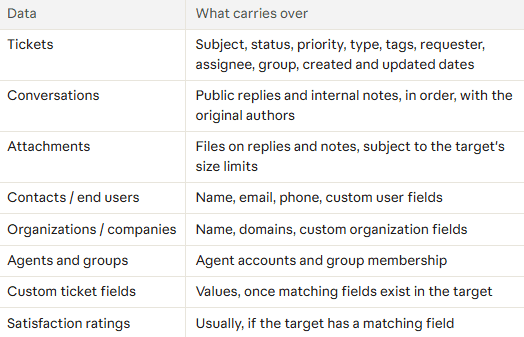
Two things to plan for: ticket IDs are almost always reassigned, so store the old ID in a custom field, and timestamps are preserved only if the tool writes them through the API rather than creating tickets as new.
What transfers with caveats
These items can move, but expect cleanup, and check them closely in your test migration.
• Macros - Some migration tools carry over a macro's name and reply text, landing as canned responses or templates. The actions a macro performs, like setting status, adding tags or assigning a group, often don't translate because the target platform handles them differently.
• Knowledge base - Categories, sections and articles usually move well. Inline images, internal links between articles, translations and article comments are the parts most likely to break.
• Inline images - Screenshots pasted into ticket replies are stored differently from attachments, and some importers skip them entirely.
• Side conversations and merged tickets - These may arrive as notes or separate tickets rather than in their original structure.
• Custom objects and lookup fields - Supported only when the target has an equivalent, and they usually need custom mapping.
• Tags - Generally fine, but some platforms cap tag length or character sets, so long or unusual tags can be dropped.
What you must rebuild
Workflow logic rarely migrates because every helpdesk uses its own conditions, events and actions. A Zendesk trigger condition like "Ticket is updated and requester is VIP" has no guaranteed one-to-one form elsewhere, so tools can't safely translate it.
• Triggers - Event-based rules that fire when tickets are created or updated.
• Automations - Time-based rules, such as closing tickets solved for four days or escalating unanswered ones.
• SLA policies - Response and resolution targets, business hours and holiday calendars. Some migration services can carry SLA policies over when the destination supports them, so check before rebuilding from scratch.
• Views and queues - Agents' saved ticket lists and filters.
• Routing rules - Skills-based or round-robin assignment, and omnichannel routing.
• Email and channel setup - Support addresses, forwarding, DKIM/SPF records, chat widgets, phone and social channels.
• Integrations and apps - CRM, Slack, Jira, billing and marketplace apps need to be reinstalled and reauthorized.
• Reports and dashboards - Historical metrics usually don't carry over, so export the reports you need before you leave.
• Roles and permissions - Custom agent roles have to be recreated to match the new platform's permission model.
• Help center theme - Branding, custom templates and code have to be rebuilt on the new platform.
How to rebuild workflows without slowing down go-live
Treat the rebuild as a parallel project that starts before the data moves, not after.
1. Inventory everything
Export or screenshot every active trigger, automation, macro, SLA and view, with its conditions and actions.
2. Prune first
Most mature helpdesks have rules nobody remembers creating. Retire unused macros and duplicate triggers instead of migrating clutter.
3. Rank by impact
Rebuild routing, SLAs and customer-facing notifications first, since those break visibly on day one. Agent shortcuts can follow in week one.
4. Build in the target before cutover
Create fields and statuses first so rules can reference them, then set up the rules with notifications turned off.
5. Test with real tickets
After your test migration, run sample tickets through the new rules and confirm routing, tags and SLA timers behave as expected.
6. Turn rules on at cutover
Enable automations and notifications only after the final delta migration, so imported history doesn't fire emails to customers.
7. Collect agent feedback
Give agents a channel to flag missing macros or broken routing during the first two weeks.
Move the data automatically, so your team can focus on the rebuild
Rebuilding workflows takes judgment; moving tickets shouldn't. Our helpdesk migration moves tickets with full history, public and private notes, attachments, contacts, organizations, agents, teams and custom fields, plus SLA policies and knowledge base categories where the destination supports them. AI-driven mapping preserves tags and conversation context, a staging migration lets you check results before the final cutover, and Delta Sync catches new tickets while your team keeps working in the old system.
FAQ
Can Zendesk triggers be migrated automatically?
Not reliably, Trigger conditions and actions differ between platforms, so they're rebuilt as automation rules in the new helpdesk.
Can macros be migrated to Freshdesk?
Partly, Some migration tools move macro reply text into canned responses and macro actions into scenario automations, but each one should be checked before use.
Do SLA policies transfer?
Sometimes, Klamp Migrate can move SLA policies where the destination platform supports them; otherwise, re-enter targets, business hours and holiday calendars in the new platform.
Will migrated tickets trigger my new automations?
Not if the migration runs silently, Klamp imports tickets with notifications disabled, so customers don't get a flood of emails; still, keep your rebuilt automations off until the final Delta Sync is complete.
For more info on easy automation solutions visit Klamp Embed & Klamp Connectors